

BGP States
Every BGP session progresses through six states before it’s fully established. Understanding the BGP finite state machine tells you exactly where a session is failing and why. Here’s a complete walkthrough of all six states.


Denton Chikura

The quick download:
BGP uses a six-state finite state machine to establish sessions, knowing which state a session is stuck in tells you exactly what kind of problem you’re dealing with.
-
Sessions stuck in Active state indicate TCP connectivity is failing, check ACLs, routing, and MTU before touching BGP configuration.
-
The transition from OpenSent to OpenConfirm depends on successful OPEN message exchange; parameter mismatches (ASN, hold time, capabilities) will drop the session here.
-
Only the Established state means BGP is fully functional and exchanging routing updates.
-
Set up state-change alerts for every BGP session in your network, a session dropping out of Established is one of the highest-priority events in network operations.
Routing protocols help “glue” the internet together, and one of the most important of these is the Border Gateway Protocol (BGP). This article explains the BGP states that represent the neighborship between two devices and how to establish a successful session.
These states are mandatory. Every new session goes through various phases until it creates a successful BGP connection.
Overview of BGP States
Six states are involved in the BGP process as defined by the BGP finite state machine (FSM). The FSM illustrates what actions play a role at each stage of BGP session establishment. The diagram below shows how the transition between the states might occur.
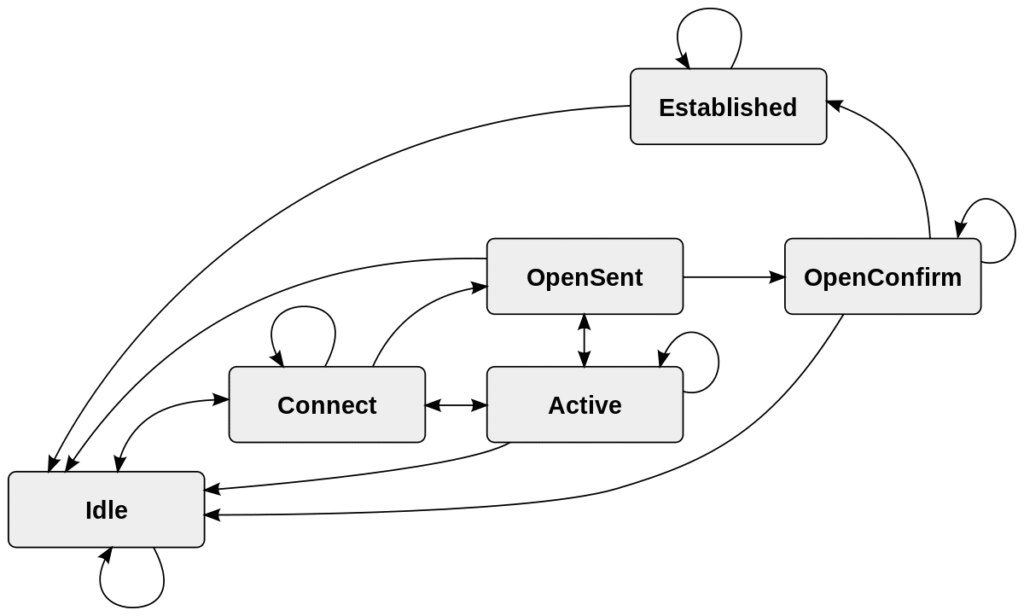
The table below summarizes all the BGP states and the pertinent processes associated with each. It is worth noting that the first three states are concerned more with TCP, while the last three have more to do with BGP only. It is not uncommon to hear them referred to as two distinct sets: TCP phases and BGP phases.
| BGP States | |
|---|---|
| Idle | Initiates a TCP connection to its configured BGP peers.Listens for incoming TCP connections.ConnectRetry timer starts (120 seconds — cannot be changed). |
| Connect | Waits for the TCP connection to complete.If TCP is successful:Sends an OPEN message to its peers.Changes the state to OpenSent and clears the CR timer.If TCP is unsuccessful:ConnectRetry timer is reset.BGP goes into the Active state. |
| Active | The BGP speaker tries to acquire its peer by initiating another TCP connection.If TCP is successful:ConnectRetry timer is cleared.Sends an OPEN message to peer and changes state to OpenSent.If TCP is unsuccessful:ConnectRetry timer is reset.BGP goes into Idle state. |
| OpenSent | Waits to receive an OPEN message from its peer and verifies all the fields. The message contains the BGP version, AS number, fold time, and BGP ID.If successful:BGP starts sending keepalives and sets its hold and keepalive timers.If unsuccessful:ConnectRetry timer is reset.BGP goes into Idle state. |
| OpenConfirm | BGP waits to receive keepalives from its peer.If successful:State is changed to established.If unsuccessful:ConnectRetry timer is reset.BGP goes into the Idle state. |
| Established | Exchange of update, notification, and keepalive messages take place with the peer.Each update or keepalive results in hold time reset. Default keepalive is 60 seconds, and the hold time is 180 seconds. |
Deep Dive into BGP States
Here, we will explore each of the BGP states in depth and explain how the transition between them occurs.
Idle
The first BGP state listens for an incoming connection request from its peer router. This connection request is expected when a new BGP session is configured or when the ConnectRetry timer is restarted.
BGP may also get stuck in this state for many reasons. TCP port 179 or ports over 1023 being closed for any reason will result in connections being rejected.
The ConnectRetry timer allows 120 seconds by default for connection requests between the routers to complete before shifting to the next state. During this time, BGP will listen for incoming connections and will try to connect with the remote neighbor actively. When the two routers start the TCP connection, BGP shifts to the Connect state.
Connect
In the Connect state, BGP tries to complete the three-way TCP handshake. If successful, it resets the ConnectRetry timer and shifts to the OpenSent state.
If the timer elapses before a TCP connection is established, the time is reset, and BGP moves to the Active State.
If anything unexpected occurs, BGP will go back to the Idle state and start the process again.
Active
BGP will kick off and attempt a new TCP connection in the Active state. If it is established successfully, it will send an Open message to its peer and move to the OpenSent state.
The progress may revert to the Connect state if the ConnectRetry timer expires before the TCP session is established, or it may go back to Idle in case of a BGP reset event.
OpenSent
In the OpenSent state, BGP is listening for an Open message from its neighbor. Once received, it checks for matching parameters and potential errors. The most notable variables in the Open message are as follows:
- BGP version (which should match on both ends).
- The autonomous system (AS) numbers.
- The source IP address of the configured neighbor.
- Router-ID uniqueness (there should be no duplicates).
- Security parameters (TTL, password, etc.).
- Capabilities (e.g., use AS numbers on 4 bytes instead of 2 bytes, enable multiprotocol for IPv6).
If there are no errors, BGP starts to send Keepalive messages and negotiates the hold time.
BGP will send a Notification and return to the Idle state if errors or mismatches are found in the Open message. If the TCP session drops for some reason, BGP will go to the Active state and attempt to complete the three-way handshake.
OpenConfirm
In the OpenConfirm state, BGP listens for Keepalive messages from its peer. If they are sent and received successfully, BGP shifts to the final Established state.
At this point, if a Notification (error message) is received, BGP will jump back to the Idle state again.
Established
In the Established state, BGP neighbor adjacency has been created. Update and Keepalive messages are exchanged, and the Hold timer is reset with every message.
If the Hold timer expires before one of these messages is received, BGP will revert to the Idle state. Receiving a Notification message will also result in going back to Idle.
Lab Demo
In this section, we will demonstrate how to configure BGP in a lab environment and look under the hood with Wireshark to see how BGP states come into play.
We have already pre configured our two routers with IP addresses and verified connectivity.
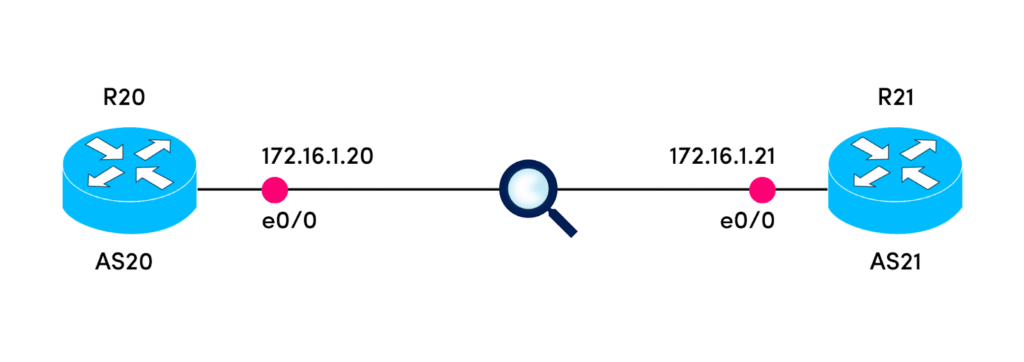
Next, we configure BGP on R20 and specify its neighbor.
R20(config)#router bgp 20
R20(config-router)#neighbor 172.16.1.21 remote-as 21
R20#
*Apr 10 21:17:02.569: %SYS-5-CONFIG_I: Configured from console by console
At this point, we can see how R20 is trying to establish a TCP session, but it’s failing as we haven’t configured R21 yet.

Configuring BGP on the R21 side:
R21(config)#router bgp 21
R21(config-router)#neighbor 172.16.1.20 remote-as 20
R21(config-router)#
*Apr 10 21:18:53.382: %BGP-5-ADJCHANGE: neighbor 172.16.1.20 Up
Almost immediately, we see the adjacency forming successfully.
R21(config-router)#
*Apr 10 21:23:52.808: %BGP-5-ADJCHANGE: neighbor 172.16.1.20 Up
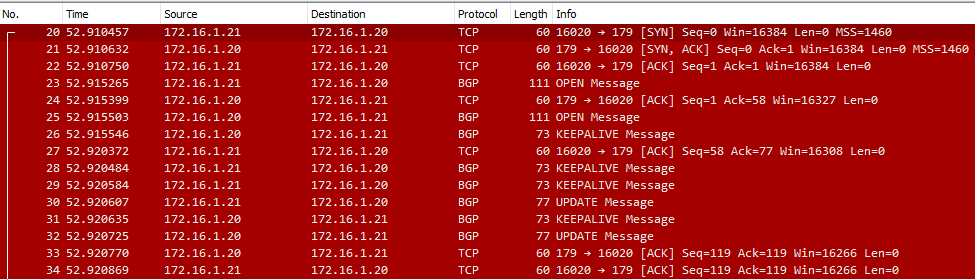
Inspecting the traffic in Wireshark, we can see some of the states and messages we discussed earlier. This is the best-case scenario when the BGP connection is brought up smoothly:
- TCP connection
- Open message
- Keepalive/Update messages
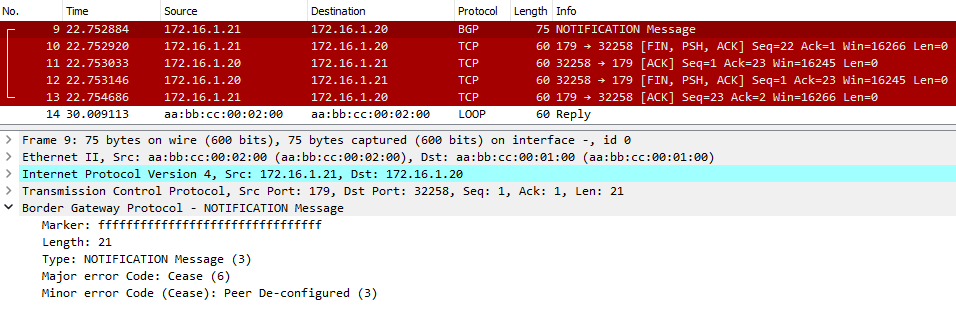
Now suppose something happens and tears the BGP session down. We will simulate that with the command below.
R21(config-router)#no neighbor 172.16.1.20 remote-as 20
*Apr 10 21:57:32.632: %BGP-3-NOTIFICATION: sent to neighbor 172.16.1.20 6/3 (Peer De-configured) 0 bytes
R21(config-router)#
*Apr 10 21:57:32.638: %BGP_SESSION-5-ADJCHANGE: neighbor 172.16.1.20 IPv4 Unicast topology base removed from session  Neighbor deleted
*Apr 10 21:57:32.638: %BGP-5-ADJCHANGE: neighbor 172.16.1.20 Down Neighbor deleted
R21(config-router)#
Now R21 sends a Notification message to R20 along with a FIN message to cut the TCP session.
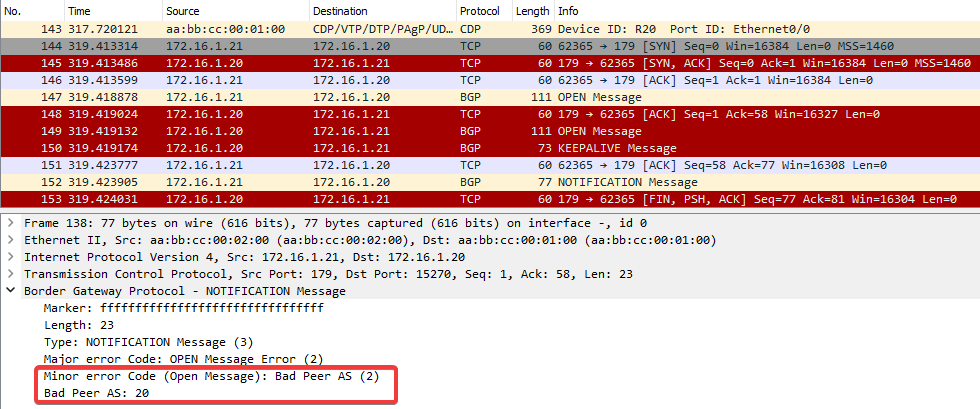
Now suppose we configure R21 to expect an iBGP session (same AS) instead of eBGP (different AS). R20 is still in AS20, but R21 will expect it to be in AS21.
R21(config-router)#neighbor 172.16.1.20 remote-as 21
R21(config-router)#
*Apr 10 21:58:45.113: %BGP-3-NOTIFICATION: sent to neighbor 172.16.1.20 passive 2/2 (peer in wrong AS) 2 bytes 0014
R21(config-router)#
*Apr 10 21:58:45.113: %BGP-4-MSGDUMP: unsupported or mal-formatted message received from 172.16.1.20:
FFFF FFFF FFFF FFFF FFFF FFFF FFFF FFFF 0039 0104 0014 00B4 AC10 0114 1C02 0601
0400 0100 0102 0280 0002 0202 0002 0246 0002 0641 0400 0000 14
R21(config-router)#
*Apr 10 21:58:49.211: %BGP-3-NOTIFICATION: sent to neighbor 172.16.1.20 active 2/2 (peer in wrong AS) 2 bytes 0014
We get another Notification message saying Bad Peer AS.
Next, we fix that and get BGP back to working order. Now we decide to create a loopback address and advertise it over BGP.
R20(config)#interface loopback 1
R20(config-if)#ip address 20.20.20.20 255.255.255.255
*Apr 10 21:51:48.312: %LINEPROTO-5-UPDOWN: Line protocol on Interface Loopback1, changed state to up
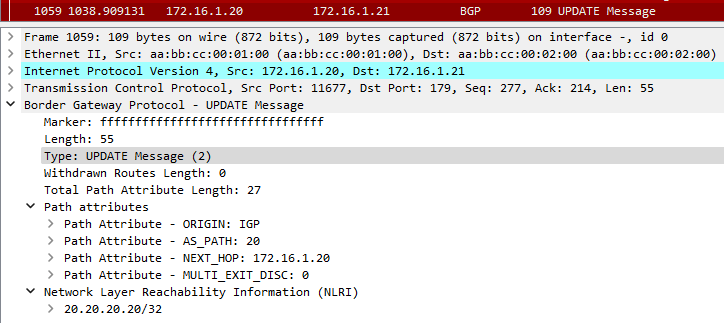
R20(config-router)#network 20.20.20.20 mask 255.255.255.255
R20 sends an Update message to its neighbor with the new prefix.
Best Practices
Here are some key points to consider when configuring BGP to avoid session issues and optimize performance:
- The BGP version should match on both ends.
- Use the correct AS numbers.
- Configure BGP using loopback addresses instead of physical interfaces.
- Summarize routes to avoid large routing tables.
- Filter the advertised and accepted routes.
Conclusion
In this article, we discussed the BGP states and described in detail how they operate during session establishment. We demonstrated these principles in a lab environment to see how they play out in real time. We also touched on best practices for configuring a BGP session and optimizing for performance.
CHAPTERS
NEWSLETTER
Subscribe to our newsletter
Get the latest blogs, whitepapers, eGuides, and more straight into your inbox.
SHARE
Never miss a BGP session state change.
LogicMonitor measures BGP session states across your entire network infrastructure, alerting your team the moment a session leaves the Established state so you can respond before users are impacted.
FAQs
What are the six BGP states?
The six BGP states defined by the BGP finite state machine are: Idle (BGP is initializing or resetting), Connect (waiting for a TCP connection to complete), Active (TCP connection failed and BGP is retrying), OpenSent (TCP is established and an OPEN message has been sent), OpenConfirm (the OPEN message was received and a KEEPALIVE is being exchanged), and Established (BGP session is fully up and routing updates are being exchanged).
What does it mean when a BGP session is stuck in Active state?
When a BGP session is stuck in the Active state, it means TCP connectivity between the two peers is failing. The router is actively trying to establish a TCP connection to its peer on port 179 but is not succeeding. Common causes include firewall rules blocking TCP port 179, incorrect neighbor IP addresses, routing issues preventing reachability, or MTU mismatches causing TCP SYN packets to be dropped silently.
What causes a BGP session to stay in the Idle state?
A BGP session stays in Idle when the protocol is administratively shut down, the router is waiting for a retry timer to expire after a failed connection attempt, or the routing daemon has not yet initiated the session. Some implementations also hold a session in Idle when authentication failures occur (MD5 password mismatch). Checking the session’s error counters and logs is the first step in diagnosing an Idle state.
How does the BGP hold timer affect session stability?
The BGP hold timer determines how long a router will wait without receiving a KEEPALIVE or UPDATE message before declaring the session dead. If the hold timer expires, the session drops to Idle and must re-establish. A common misconfiguration is a hold timer mismatch between peers, which can cause unstable sessions. Best practice is to negotiate the hold timer explicitly rather than relying on defaults, and to monitor it via SNMP or BGP monitoring tools.
© LogicMonitor 2026 | All rights reserved. | All trademarks, trade names, service marks, and logos referenced herein belong to their respective companies.