

Audit Log Report
Last updated – 29 December, 2025
The Audit Log report provides a summary of audit log entries. Similar to the Audit Log page itself, the report can be filtered and sorted according to various criteria, such as time range, the user associated with the activity, and keywords.
Note: How long the audit log entries remain available depends on the “alert history storage” level associated with your LogicMonitor account. To save these records or a filtered subset for historical purposes, you can schedule recurring Audit Log reports. For more information, see Audit Logs.
Configuring an Audit Log Report
- In LogicMonitor, navigate to Reports.
- Select
 > Add Report > select Add for the Audit Log report.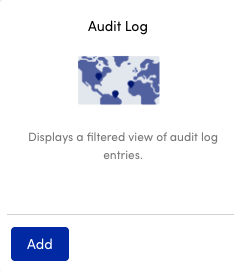
- In the Name field, enter a name for the report.
Report names cannot include the operators and comparison functions used in LogicMonitor’s datapoint expression syntax. - (Optional) In the Description field, enter a description for the report.
For example, you can enter a description of the specific purpose of the report. - From Report Group, select the report group where your report is stored.
Matching groups display as you type, and you can select the group from the list. - From Format, select the type of format for the output of the report.
You can select HTML, PDF, or CSV.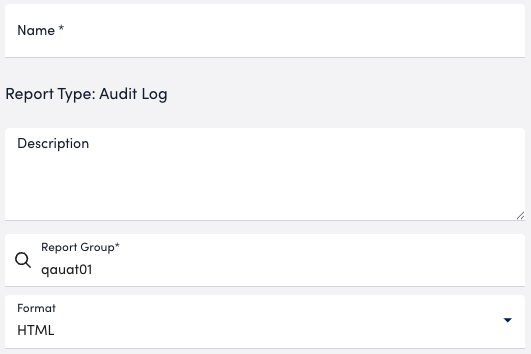
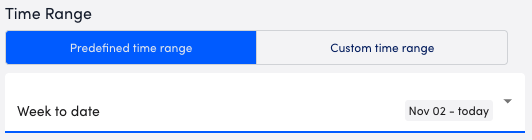
- In the Time Range section, select whether to configure a predefined time range or custom time range by doing the following:
- To configure a predefined time range, select Predefined time range and then choose a time range option.
- To configure a custom time range, select Custom time range and then configure the time range settings.
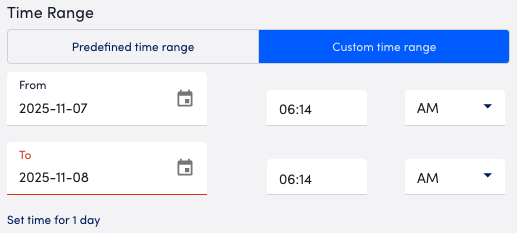
- To configure a predefined time range, select Predefined time range and then choose a time range option.
- In the Search Filter field, enter filtering criteria to limit the scope of your report. You can enter terms using Boolean logic operators and wildcards.
- In the User Filter field, enter users to limit the report output to one or more users.
- From the Sort By dropdown menu, select an option to order your report based on activity Date or User.
- Use the Columns settings to configure the columns you want displayed in your report.
You can configure the order the columns display in and whether or not to hide certain columns.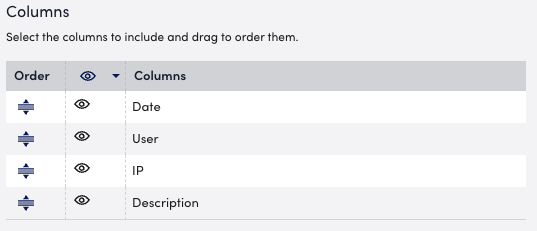
- In the Report Schedule section, do the following to configure the report to generate on a schedule:
- Toggle the Generate this report on a schedule switch.
- From the Frequency dropdown menu, select how frequent you want the report to generate, and then configure when you want the report to generate.
For example, if you configure the report to generate daily, you can choose the time to generate the report each day. If you configure the report to generate weekly, you can choose the day of the week and time to generate the report for the selected date. If you configure the report to generate monthly, you can configure the day of the month and time to generate the report.
Each frequency option provides you a setting for selecting the time zone. - In Recipients Email, enter the name of the user you want to receive the generated report.
You can also add recipient groups.
You can enter as many users as needed.
LogicMonitor attempts to match values as you type.
The recipients you add to the report are emailed a generated report based on the format you configured and the email associated with the username.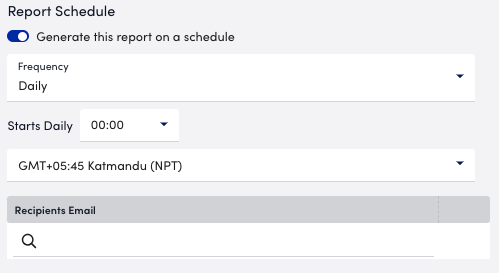
- Do one of the following to save the report:
- Select Save.
The report saves to the Report Group you selected.
If you configured the report to generate on a schedule, the report generates and sends to recipients based on the frequency you configured. - Select Save and Run.
The report saves to the Report Group you selected and generates a report based on the format you configured.
If you configured the report to generate on a schedule, the report generates and sends to recipients based on the frequency you configured.
- Select Save.
Threshold Limits for Audit Log Report
Adhoc Requests Thresholds (Limit for number of items)
| CSV | HTML | |
| 229500 | 30000 | 2000 |
Scheduled Requests Thresholds
| CSV | HTML | |
| 4000000 | 30000 | 4000 |
