

Tracked Query Management
Last updated - 02 February, 2026
The Query Tracking Management page provides visibility and control over all tracked log queries within a LogicMonitor portal. Access to this page is governed by Role-Based Access Control (RBAC), meaning users can view and manage tracked queries according to their assigned permissions. While administrators have full access to all tracked queries, standard users can view and manage only their own.
This page enables you to view, filter, and perform actions, such as pausing, resuming, or deleting tracked queries across the portal.
Note: Each LogicMonitor portal supports up to 250 Basic Tracked Queries and 50 Aggregate Tracked Queries. These limits apply per portal and ensure optimal query performance
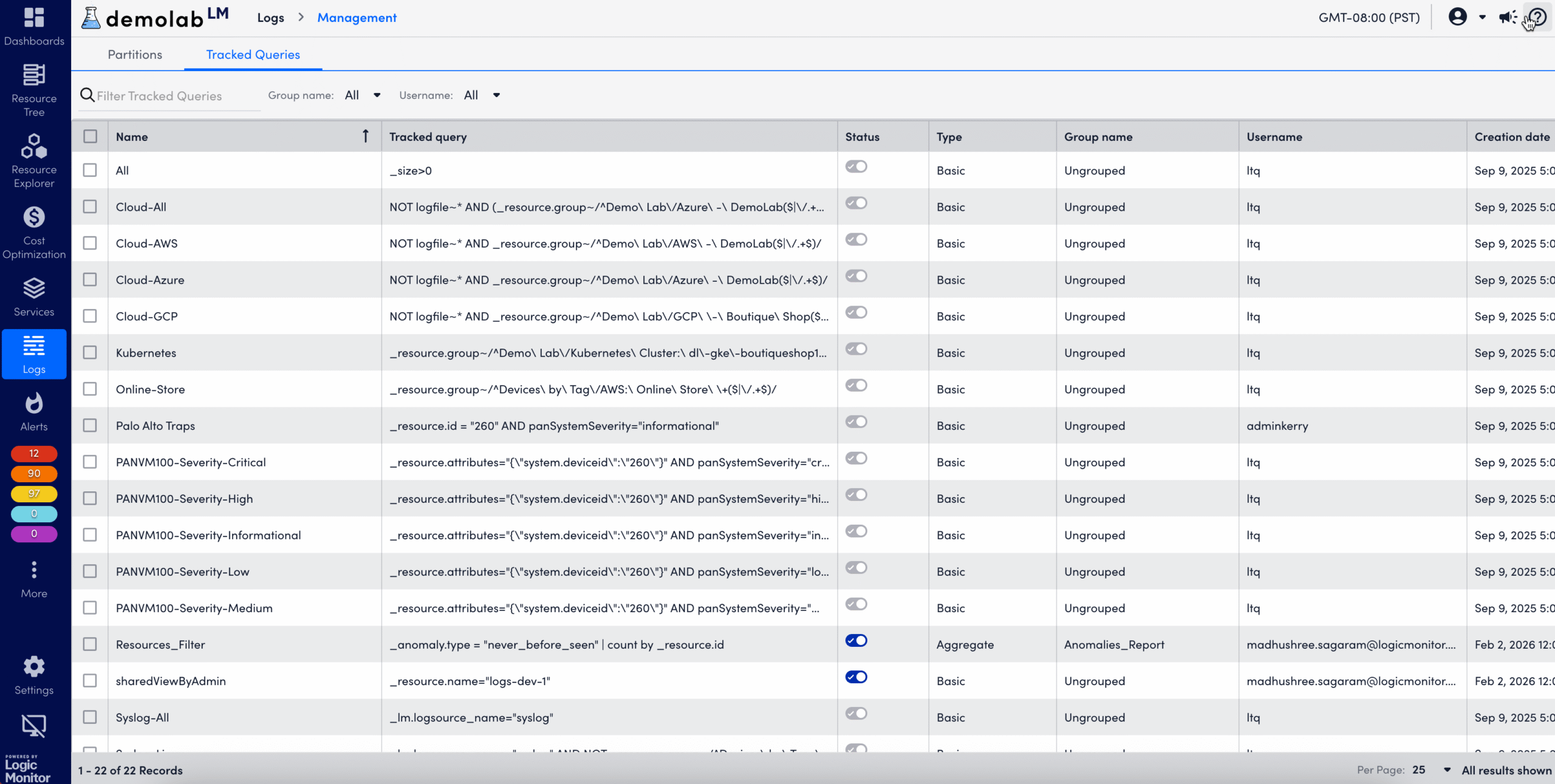
The Query Tracking Management page displays a table containing the following columns:
| Column Name | Description |
| Name | The name of the tracked query as configured by the user. |
| Query Syntax | The log query expression used for tracking. |
| Status | Indicates whether the tracked query is active or paused. A toggle displays the current state. |
| Type | The category or type of the tracked query (for example, basic or aggregate). |
| User Name | The LogicMonitor user who created the tracked query. |
| Creation Date | The date and time when the query was created. |
| Actions | Provides controls for viewing or managing the tracked query. |
From the Actions column, you can perform the following:
- View in Resources: Opens the associated Log Tracked Queries resource in the Resources page, enabling you to review related metrics or alerts.
- View in Logs: Opens the corresponding log search in the Logs tab for real-time review of the query’s data.
- Delete: Permanently removes the tracked query from the system. Once deleted, the query stops running and no new data is collected.
Note: Deleting a tracked query does not delete previously collected data. Existing data remains available until its associated instance is removed from the Log Tracked Queries resource group.
You can also perform bulk actions on multiple tracked queries. Bulk actions menu enables administrators to manage multiple tracked queries simultaneously.
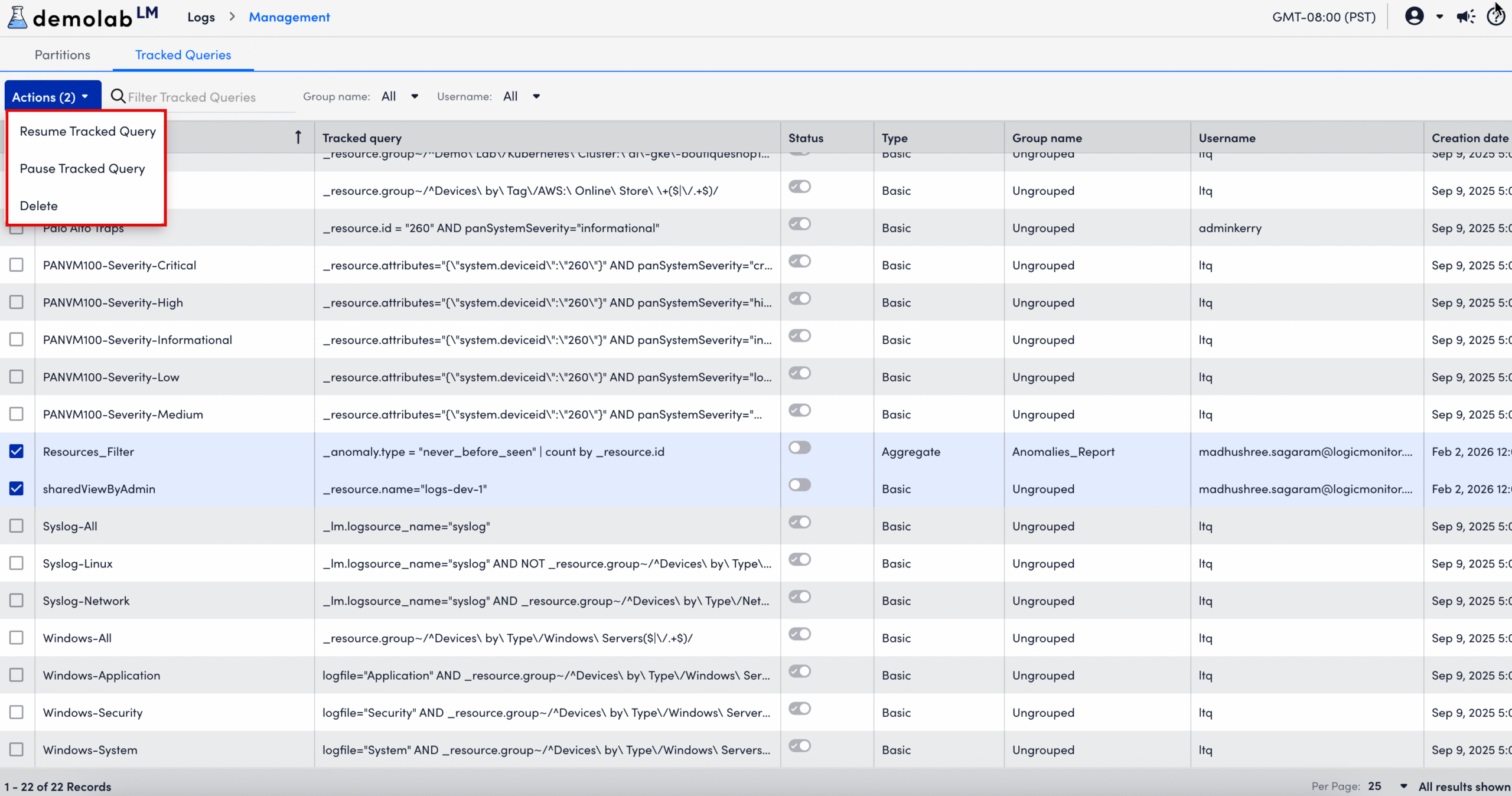
The following are the available options:
- Resume Tracked Query reactivates selected paused tracked queries. LogicMonitor resumes automated execution at the next scheduled interval.
- Pause Tracked Query temporarily halts data collection for selected tracked queries. Data already collected remains available.
- Move to Another Group reassigns selected tracked queries to a different organizational group (feature availability depends on permissions).
- Delete permanently removes selected tracked queries from the portal.
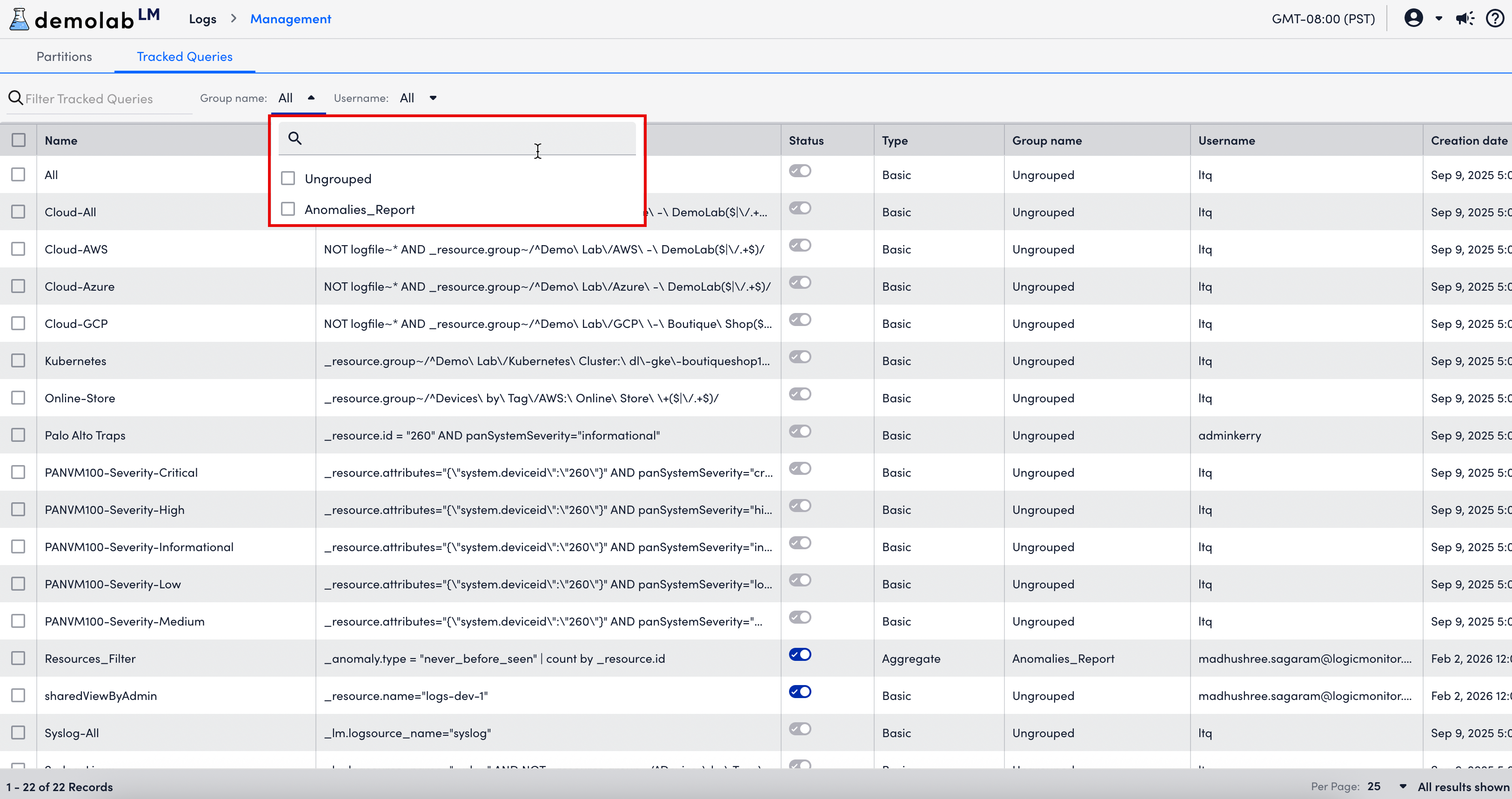
The Log Management page also includes the Filter Tracked Queries search bar, which enables you to locate tracked queries by Group name and Username. These filtering options help you quickly identify, filter, and sort tracked queries in large environments.
Requirements for Managing a Tracked Query
To access and perform actions on tracked queries, you need the following:
- Your LogicMonitor portal must include the Logs feature enabled.
- The tracked queries you want to manage must already exist within the Query Library or have been created by other users in your portal.
- You must have a LogicMonitor user account with appropriate RBAC permissions.
- Administrators can view and manage all users’ tracked queries.
- Standard Users can view and manage only the queries they created.
- Read-Only Users can view tracked queries but cannot modify them.
For more information about user roles and permissions, see Roles and Permissions.
Managing a Tracked Query
- In LogicMonitor, navigate to Logs >
 More Options > Logs Management.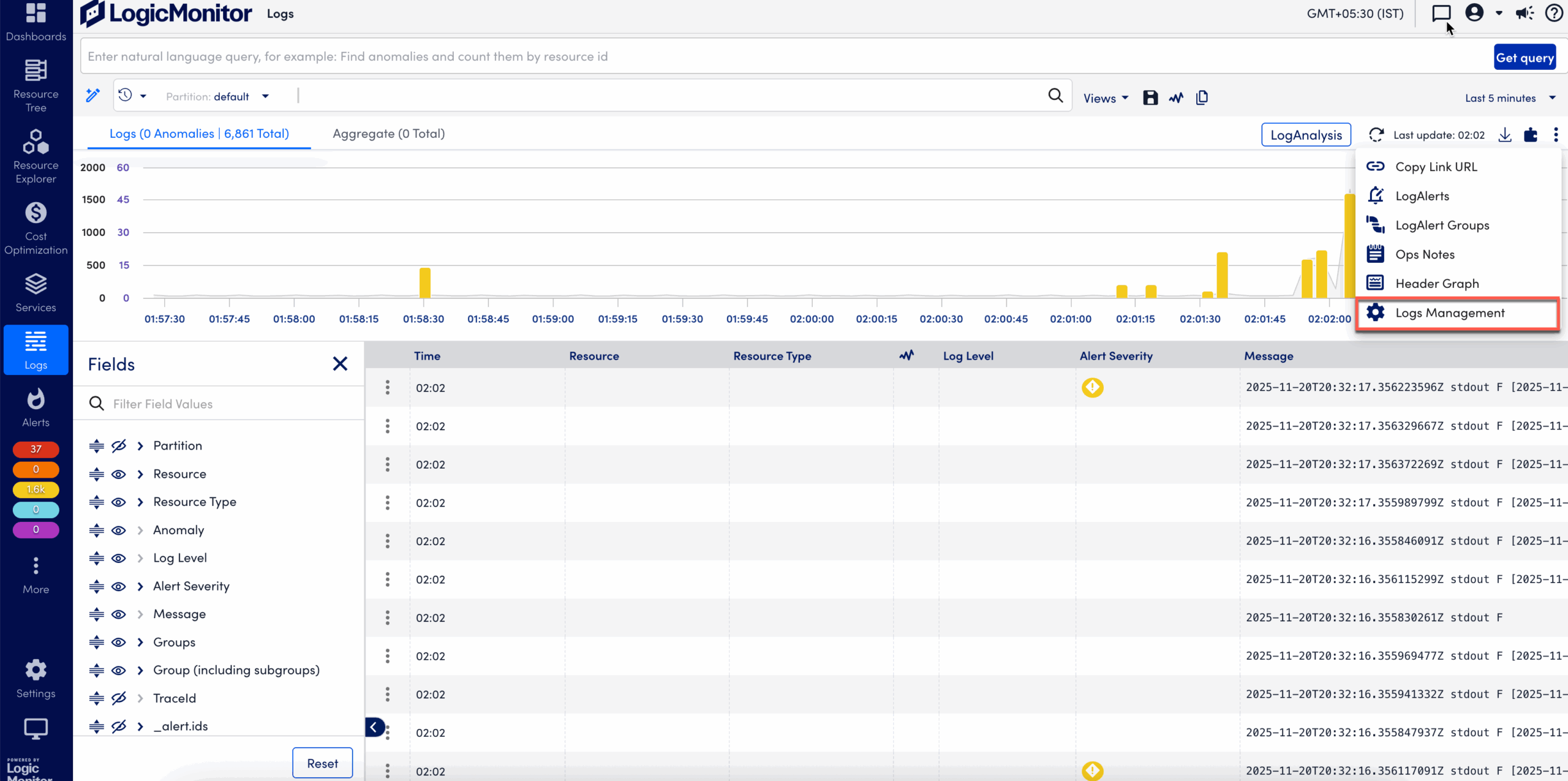
- Select Tracked Queries tab on the Logs Management page.
- Locate the tracked query that you want to manage in the table.
- In the Actions column, do one of the following:
- To view the query in Resources, select View in Resources.
- To open the query in Logs, select View in Logs.
- To delete the tracked query, select Delete, and then confirm the deletion.
Note: You cannot delete an active query. You need to first stop query tracking and then perform delete action.
- (Optional) To perform an action on multiple tracked queries, select the checkboxes next to each query, and then select the appropriate option from the Bulk Actions dropdown.
The selected action is applied immediately.
