

Resource SDT
Last updated - 14 May, 2026
You can use the Resource Scheduled Downtime feature to suppress alert notifications for monitored resources during planned maintenance windows. During the SDT window (that is, when the SDT is in progress), LogicMonitor continues to collect performance data and evaluate alert thresholds however, it pauses notifications and escalations. SDT prevents expected outages such as patches, upgrades, reboots, or infrastructure changes from generating unnecessary alerts. Resource SDT maintains alert integrity, reduce alert noise, and preserve the accuracy of notifications outside maintenance windows.
Resource SDTs can be applied to resources, resource groups, websites, Collectors, and LogicModules such as DataSources and EventSources. When an SDT is scheduled for a resource group, it cascades to all its child resources. You can schedule Resource SDT for a one-time frequency or on recurring basis to align with the maintenance cycles. You can modify, extend, or end an active SDT as operational needs. LogicMonitor provides visibility into scheduled and historical maintenance windows through tools such as the SDT Inventory Report.
You can schedule SDT for Websites and LogicMonitor Collectors. For more information, see Website SDT and Collector SDT.
Requirements for Adding and Managing SDT
To add or modify SDT for resources or resource groups, you need a LogicMonitor user with Manage permissions for those resources.
Adding SDT
- In Logicmonitor, navigate to Resource Tree and select the required resource group to add SDT.
- Select
 Schedule SDT.
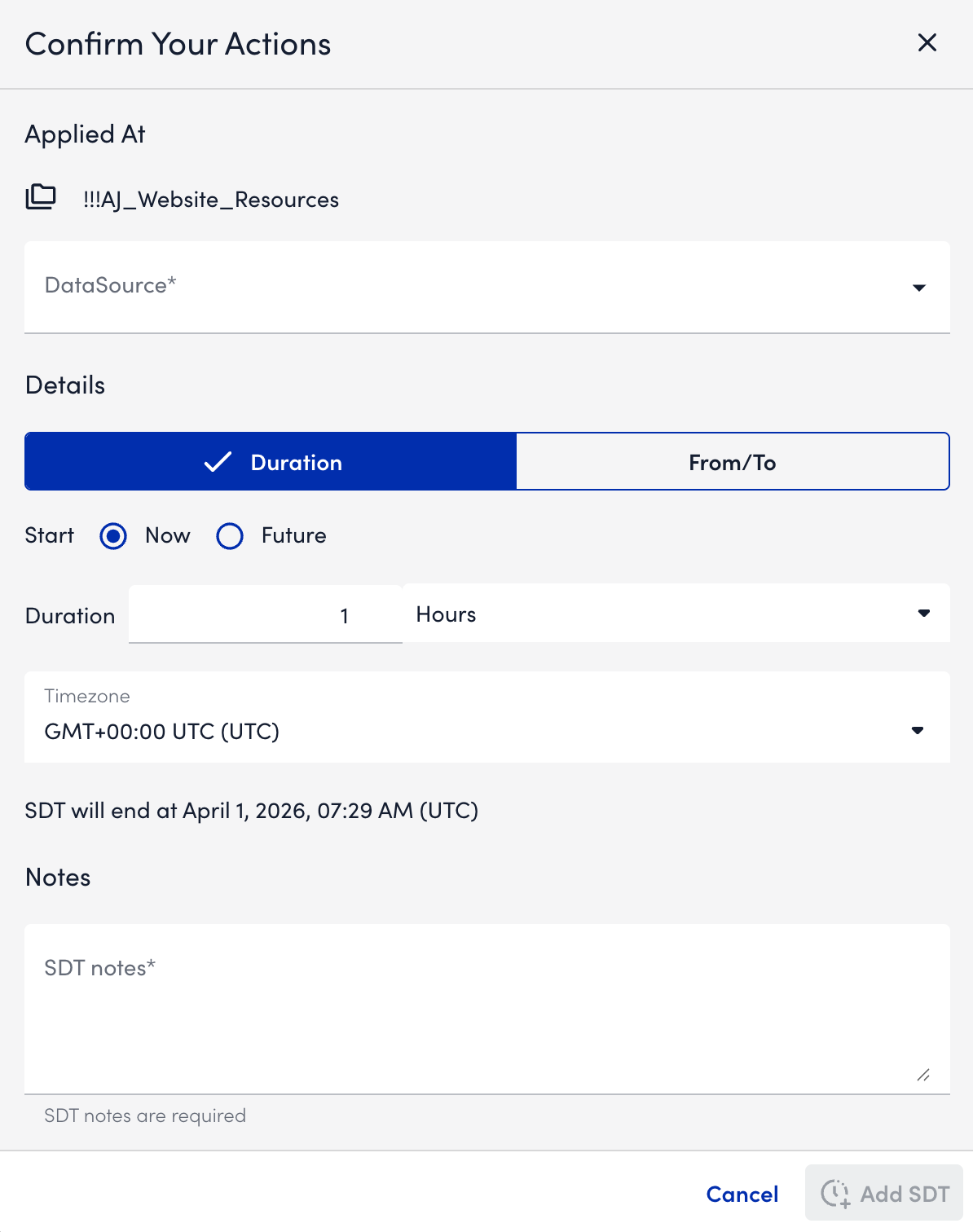
 - Select “All” or a specific DataSource from the DataSource dropdown menu.
- In the Details section, select one of the following configuration modes:
- If you select Duration, do one of the following:
- If you select Now, the SDT begins immediately.
- If you select Future, the SDT is scheduled for a future start date and time.
Then define the duration and time unit for the SDT window.
- If you select From/To, in the Frequency field, select one of the following options:
- One Time—Set a single start date and time for the SDT.
The SDT runs once and ends at the specified time. - Daily—Schedule the time the SDT occurs each day.
- Weekly—Select the day of the week for the SDT.
- Monthly (on specific day)—Select a specific day of the month.
- Monthly (day of the week)—Select the day-of-week pattern for the SDT.
Note: When you select “Weekly” from the Day dropdown, configure multiple weekdays in a single recurrence using a common start and end time. You can update selected days at any time without creating additional SDT entries and set a single day if required.
- One Time—Set a single start date and time for the SDT.
- If you select Duration, do one of the following:
- Set the Start and End time for the SDT, and specify the day when required by the selected frequency.
- From the Timezone dropdown menu, select a time zone.
- In the Notes field, enter any notes or technical information.
- Select Add SDT.
The SDT is added and applied to the selected resource group.
Note: If you select Frequency as Monthly (on a specific day), the Day dropdown includes 29, 30, 31, and On last day as separate scheduling options in the Recurring monthly SDT type.
Managing SDT
- In Logicmonitor, navigate to Resource Tree and select the required group to manage SDT.
- In the resource settings, select SDT tab.
- Select
 Manage. The Edit SDT dialog box displays.
 - Modify the SDT settings.
- In Applied At, review the resource the SDT applies to.
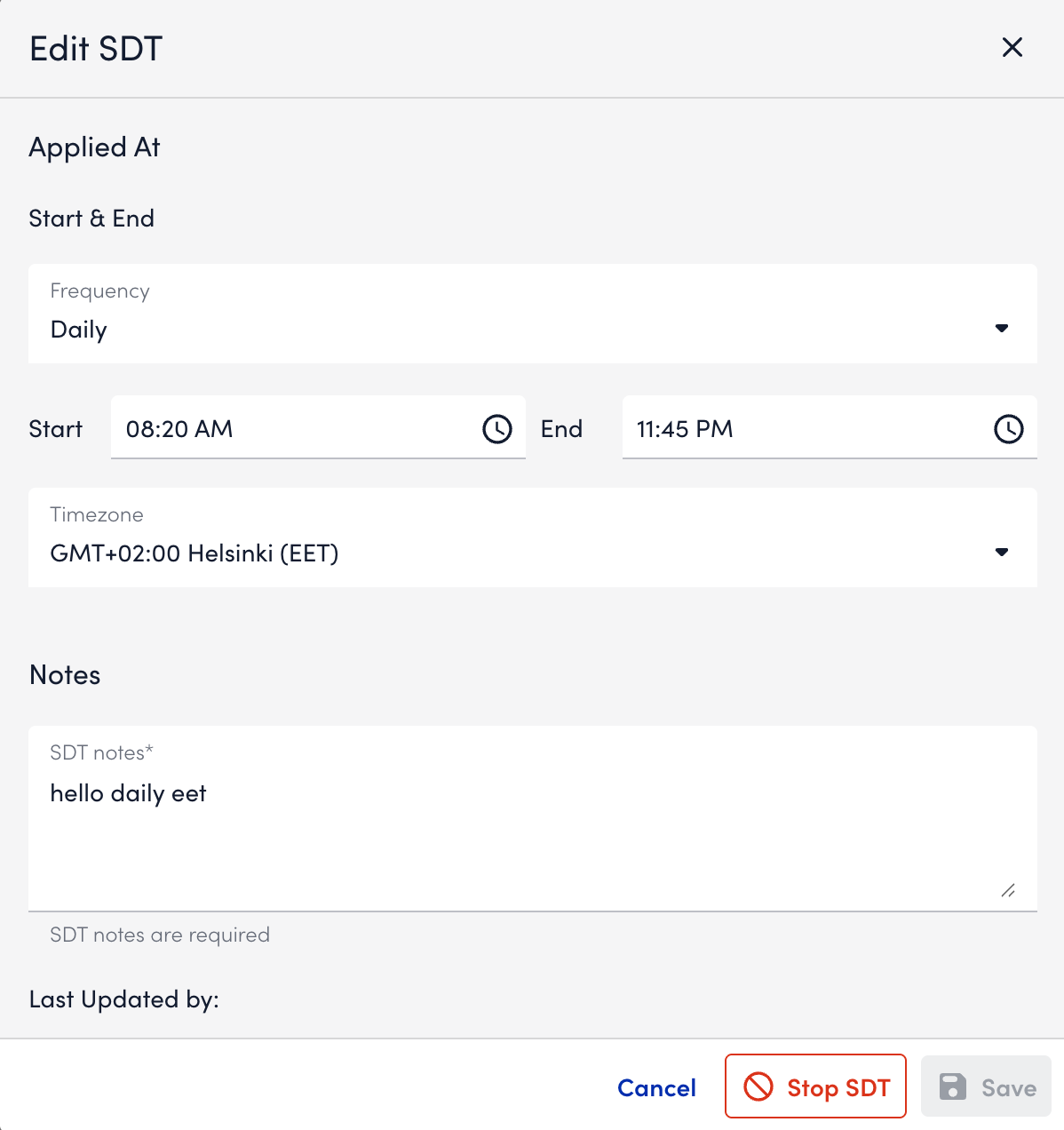
- Select Save.
The updated SDT settings are applied to the selected resource. - In addition, you can stop an SDT before it begins by selecting Stop SDT and then confirming the action when prompted.
